Learn more about Workday 2025R2's impacts on two business processes: Compensation and I-9
Updated Compensation Screen
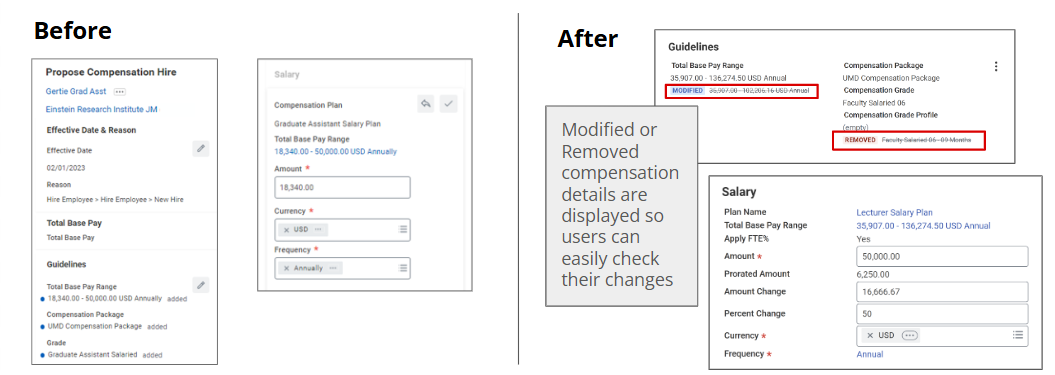
The Workday compensation screen interface has been updated to be more user-friendly. Now, there is one menu screen that shows the allowable changes and will display if compensation has been modified or removed.
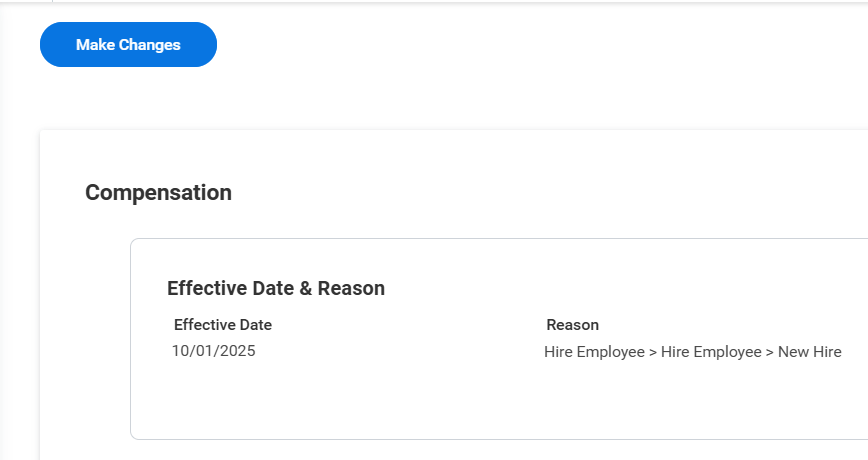
Additionally, there is a “Make Changes” button appearing on the compensation screen, which must be selected if compensation needs to be added or changed.
Form I-9 for Remote Hire
With the Workday Release, the Form I-9 for Remote Hire has been updated to include:
- Streamlined User Interface: I-9 Partners will see a more user-friendly interface.
- New Features: A new Back button and an updated review page have been introduced.
- File Upload Restrictions: Document scans can only be uploaded as specific file types: doc, docx, html, htm, pdf, and txt. Photos from phones are often .jpgs. These must be converted to one of the file types above before they can be uploaded.
New Alert Message for Form I-9 for Remote Hire
What is it? I-9 Partners now see this alert when accessing the Form I-9 for Remote Hire link from the new employee’s email: “To fill in and submit this form, ensure you’re logged out of Workday or use a new browser session. You can’t use the Remote I-9 form while you’re logged into Workday.”
Why? This alert was configured as a part of the Workday release for security purposes and is expected behavior. While we work on a better solution, please bypass this alert using one of the 3 options below.
How do we bypass it? I-9 Partners have three choices to bypass the new message. (Remember - the link can only be used once. Be sure to follow the instructions below before clicking or you will need to request a new link from the employee, delaying the I-9).
You can do any of the following three options:
- Log out of Workday, clear cache/cookies, and then click the link ; or
- How do I clear my cache? See instructions for common browsers:
- Open the link in an incognito or private browser; or
- How do I open a link in a private browser? See instructions for common browsers:
- Google Chrome (Incognito)
- Microsoft Edge (InPrivate)
- Mozilla Firefox (Private Browsing)
- How do I open a link in a private browser? See instructions for common browsers:
- Open the link in a different browser (i.e., if you are logged into Workday in Chrome, open the link in Edge)
If you have any questions about either of these updates or the error message, please submit a ServiceNow case to the ERP Services-HCM team.